
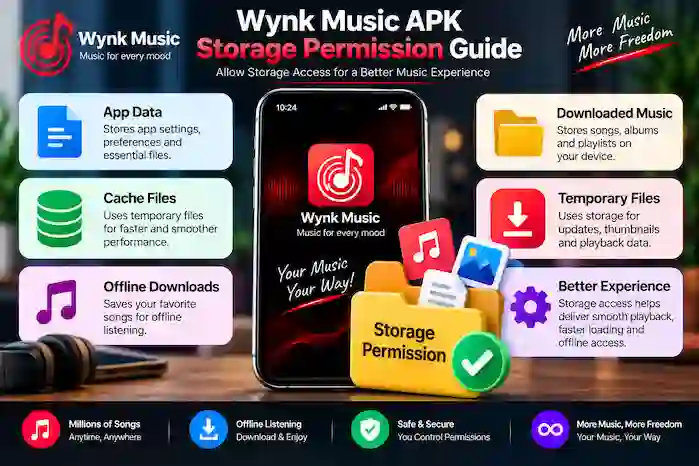
The Wynk Music APK Storage Permission Guide explains how storage access can affect installation, application data, cache, and offline music downloads on Android devices.
Android permission controls vary between versions and manufacturers. For this reason, a storage-related problem should be diagnosed by checking the application’s current permissions, available device storage, Android version, and the specific application build.
Why Does Wynk Music Need Storage Access?
Music applications may need storage-related access for functions such as:
- Application data
- Temporary cache files
- Downloaded content
- Offline listening data
- Files created during normal application use
The exact permissions requested can vary depending on the application version and Android release.
Not every Android version uses the same storage-permission model.
How to Check Wynk Music Permissions
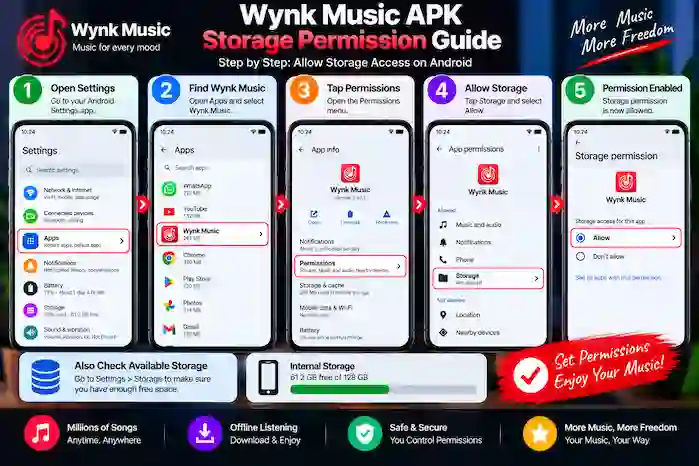
On many Android devices, you can review application permissions through:
Settings → Apps → Wynk Music → Permissions
The exact menu names may differ between manufacturers.
Look for storage-related permissions or other access requested by the application and review whether they are currently allowed.
How to Allow a Storage Permission
If Android provides a relevant storage permission and the application requires it for a particular feature:
- Open Settings.
- Select Apps.
- Open Wynk Music.
- Select Permissions.
- Review the available permissions.
- Allow only permissions that are relevant to the feature you want to use.
Android may provide different permission options depending on the version installed on your device.
What If Storage Permission Is Not Listed?
On newer Android versions, applications may not show a traditional broad storage permission.
Instead, Android can provide more specific controls for files, media, photos, or other resources.
If you cannot find a storage permission under Wynk Music, do not assume that something is wrong. The application and Android version may simply use a different access model.
Check the application’s available permissions and the Android version on your device.
Storage Permission vs Available Storage
Storage permission and free storage space are two different things.
Storage Permission
This determines whether an application is allowed to access certain storage-related resources.
Available Storage
This determines how much free space remains on the device.
You can have:
- Enough storage but insufficient permission
- Permission enabled but insufficient free space
- Both permission and storage available
- Neither permission nor sufficient storage
Both should be checked when troubleshooting downloads or application errors.
How to Check Available Storage
Open:
Settings → Storage
Your device should display information about:
- Used storage
- Available space
- Applications
- Photos and videos
- Downloads
- Other files
If your storage is nearly full, remove unnecessary files before attempting large downloads or updates.
Wynk Music APK Storage Permission Not Working
If Wynk Music cannot access storage as expected, first check the application’s permissions.
Then check:
- Android version
- Available storage
- Application version
- Device configuration
- Whether the affected feature actually requires storage access
Restarting the application after changing a permission can also help determine whether the change took effect.
Wynk Music Download Not Working
Storage-related problems can affect downloads, but they are not always caused by permissions.
If a download fails, check:
- Available storage.
- Internet connection.
- Application permissions.
- Application version.
- Whether the content supports downloading.
- Whether the application is reporting a specific error.
If storage is nearly full, free some space before trying again.
Wynk Music Offline Downloads and Storage
Offline music can require additional device storage.
The amount of space used depends on factors such as:
- Number of downloaded tracks
- Audio quality
- Downloaded playlists
- Temporary application data
- Cache
If you use offline features frequently, monitor available storage through Android settings.
How to Free Storage for Wynk Music
If your phone is running low on space, consider removing unnecessary:
- Old videos
- Duplicate photos
- Unused applications
- Old downloads
- Large files
- Temporary files
Avoid deleting application data or downloaded content unless you understand what will be removed.
Storage Permissions on Android 15
Android 15 can use more specific permission controls than older Android releases.
If Wynk Music behaves differently after an Android update, review:
- Application permissions
- Available storage
- Application version
- Download settings
- Android privacy controls
The exact permission interface depends on the device manufacturer and software configuration.
Storage Permissions on Android 16
Android 16 users should similarly review the permissions shown for their installed Wynk Music version.
Check:
Settings → Apps → Wynk Music → Permissions
If a storage-related permission is not displayed, the application may be using a different Android access mechanism.
Do not grant unrelated permissions simply because a storage problem exists.
Wynk Music Storage Permission After Installation
If the application was recently installed and a feature cannot access required content, review its permissions.
Also check whether:
- The installation completed successfully.
- The application is compatible with your Android version.
- Storage is available.
- Android has displayed a permission or security warning.
A permission problem is only one possible cause of a feature not working.
Storage Permission After an APK Update
An application update can sometimes change how permissions are presented or requested.
If a feature stops working after an update:
- Open Android settings.
- Select Apps.
- Select Wynk Music.
- Open Permissions.
- Review the current access.
- Check available storage.
- Restart the application.
If the issue began immediately after one particular application build, compatibility or application behavior should also be considered.
What If Android Automatically Removes a Permission?
Some Android versions can manage unused application permissions.
If a permission appears to have changed, open the Wynk Music permission settings and review the current status.
Do not repeatedly grant permissions without understanding why they are being requested.
Storage Permission and Privacy
Storage access can involve personal files or media, depending on the Android permission model and application behavior.
For this reason:
- Review requested permissions.
- Grant only relevant access.
- Avoid unnecessary permissions.
- Check Android’s privacy controls.
- Investigate unexpected permission requests.
This is especially important when using an application package obtained outside the standard app distribution process.
Third-Party APK Storage Permission Considerations
A third-party APK may behave differently from an official application package.
Before granting storage-related access, consider:
- Why the permission is being requested
- Whether the permission matches the application’s purpose
- Whether Android displays a warning
- Where the APK came from
- Whether the application requests unrelated access
If a package requests unusually broad access without a clear reason, review the request carefully rather than automatically approving it.
Common Storage Permission Problems
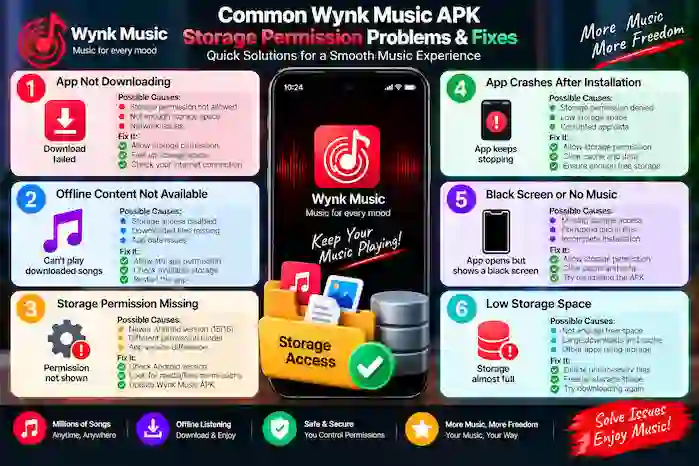
| Problem | First Check |
|---|---|
| Download cannot start | Storage and permissions |
| Download stops | Free storage and connection |
| Offline content unavailable | Download status and application access |
| APK will not install | Free storage and compatibility |
| Application cannot access files | Relevant Android permissions |
| Permission missing | Android version and application permission model |
| Storage almost full | Remove unnecessary files |
| Problem after update | Permissions and application version |
Storage Permission Troubleshooting Checklist
Use this checklist when Wynk Music reports a storage-related problem:
- Check available device storage.
- Open Wynk Music’s permission settings.
- Review relevant permissions.
- Confirm your Android version.
- Check the application version.
- Restart the application.
- Check your internet connection for downloads.
- Review any Android error message.
- Avoid granting unrelated permissions.
- Check whether the feature actually requires storage access.
What Not to Do
When troubleshooting storage permissions, avoid:
- Granting every available permission without checking its purpose.
- Deleting important application data without understanding the consequences.
- Ignoring Android security warnings.
- Assuming low storage and permission problems are the same issue.
- Installing unrelated APK versions to solve a permission problem.
Identify the specific issue first and then change only the relevant setting.
Frequently Asked Questions
How do I give Wynk Music storage permission?
Open Settings → Apps → Wynk Music → Permissions and review the permissions available on your Android device. The exact options vary by Android version and manufacturer.
Why can’t I see a storage permission?
Newer Android versions can use more specific access controls instead of a traditional broad storage permission. The available options depend on the application and Android version.
Can low storage stop Wynk Music downloads?
Yes. Even when the application has the necessary permissions, insufficient free space can prevent downloads or application data from being stored.
Does storage permission mean free storage?
No. Storage permission controls access, while available storage describes how much space remains on the device.
How do I check free storage?
Open Settings → Storage. Android will show how much space is available and what is using it.
Can Android 15 change storage permissions?
Android versions can use different permission and storage-access models. Review the permissions shown for your particular Wynk Music installation.
What about Android 16?
The same principle applies: check the permissions displayed by Android for the installed application and review available storage separately.
Why are Wynk Music offline downloads not working?
Possible causes include insufficient storage, connection problems, permission settings, application compatibility, or content and account limitations.
Should I allow every permission requested by a third-party APK?
No. Review each permission and allow only access that is relevant to the application’s expected functionality.
What if the storage problem continues?
Check the exact error message, available storage, permissions, Android version, and application version. If a third-party package continues to behave unexpectedly or triggers security warnings, consider using an official compatible version of Wynk Music.
Conclusion
The Wynk Music APK Storage Permission Guide shows that storage permissions and available storage are separate parts of Android troubleshooting.
When Wynk Music cannot download or access expected content, check the application’s permissions, free storage, Android version, application build, and the exact error being displayed. On newer Android versions, storage access may be handled through more specific permission controls, so avoid granting unnecessary access simply to resolve a problem.